

 Home
HomeConfiguring OAuth
Using OAuth requires some configuration in the Turnkey Dashboard and your app.Enabling OAuth
Navigate to the Embedded Wallets → Configuration section in the Turnkey Dashboard and enable the OAuth. Note if you have not enabled the Auth Proxy, you will need to do so first. Check out the Getting Started guide for more details.
Configuring OAuth providers
You must enable the OAuth providers you want to use in the Social logins section.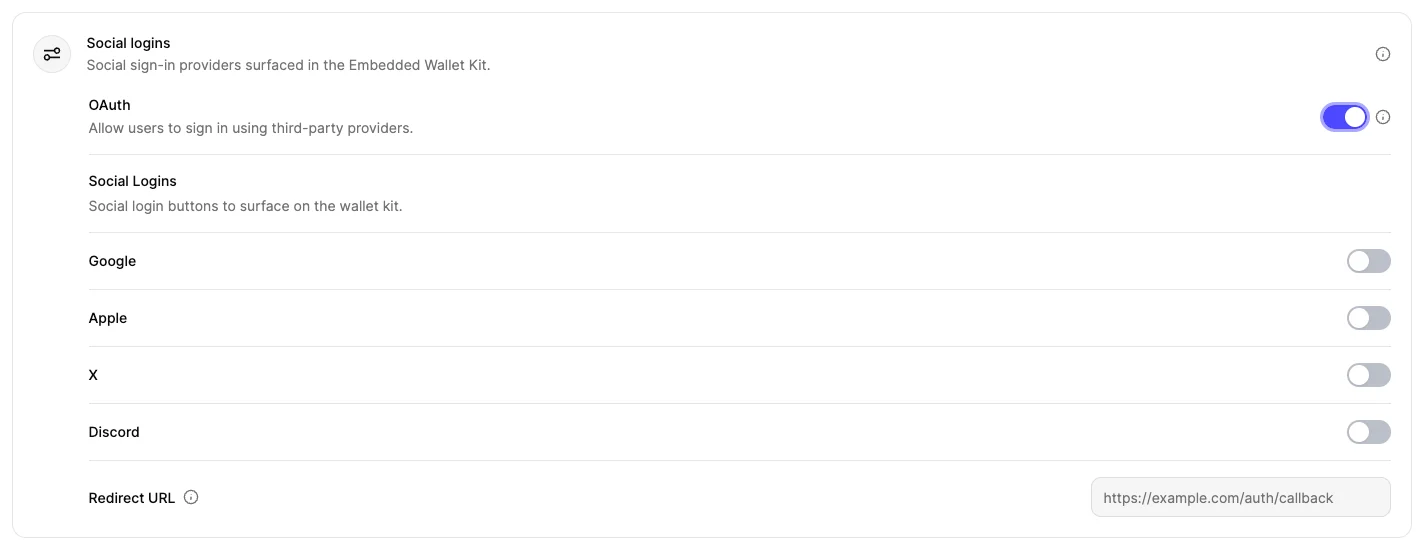
Client IDs
You can choose to enter your client IDs for each OAuth provider and the redirect url in the dashboard.

TurnkeyConfig used to initialize the SDK.
This is useful if you want to use different OAuth client IDs or a different redirect URL for different environments (e.g., development, staging, production).
You can retrieve the client IDs from the OAuth provider’s dashboard. Note that the redirect URI must match the one you configured in the dashboard or in the TurnkeyConfig.
For OAuth2.0 providers, you will need to upload the client ID and secret in
the dashboard. Check out the OAuth2.0
providers
section for more details.
Client configuration
In order to catch the OAuth redirect in your app, you must add the OAuth redirect activity to yourAndroidManifest.xml with a valid app scheme.
This activity will allow the Turnkey SDK to handle the OAuth redirect and complete the login flow.Ensure you provide the same app scheme in your
TurnkeyConfig used to initialize the SDK.
By default, Turnkey hosts the OAuth redirect and origin pages at
https://oauth-redirect.turnkey.com and https://oauth-origin.turnkey.com,
which forward back into your app via the appScheme you configured. If
you’d rather host these yourself, you can set an oauthRedirectUri in your
TurnkeyConfig. Whatever URL you set must match the one registered in the
provider’s developer dashboard.Usage
In your app, call the corresponding helper for each provider fromTurnkeyContext: handleGoogleOAuth, handleAppleOAuth, handleDiscordOAuth, and handleXOAuth.
Provider details
OAuth providers
- Client ID: use a Web client ID from the Google developer console and set it in the Dashboard or in the
TurnkeyContext.init’s config. - In the Google developer console, set the authorized redirect URL to
https://oauth-redirect.turnkey.com/?scheme=YOURAPPSCHEME/and the authorized JavaScript origin tohttps://oauth-origin.turnkey.com/. ReplaceYOURAPPSCHEMEwith theappSchemeyou set inTurnkeyConfig.
Apple
handleAppleOAuth on Android uses a web-based Apple OAuth flow that authenticates against the Apple Services ID.
Requirements:
- Client ID: set the Apple Services ID in the Dashboard or in the
TurnkeyContext.init’s config. - In the Apple Developer dashboard, set the Services ID’s return URL to
https://oauth-redirect.turnkey.com/?scheme=YOURAPPSCHEME/and its domain/origin tohttps://oauth-origin.turnkey.com/. ReplaceYOURAPPSCHEMEwith theappSchemeyou set inTurnkeyConfig.
OAuth2.0 providers
For OAuth providers that exclusively use OAuth2.0 (e.g., X, Discord), you will need to configure a few additional settings in your Turnkey Dashboard. In the Embedded Wallets → Configuration section of the dashboard, head to the OAuth 2.0 tab and click Add Credential.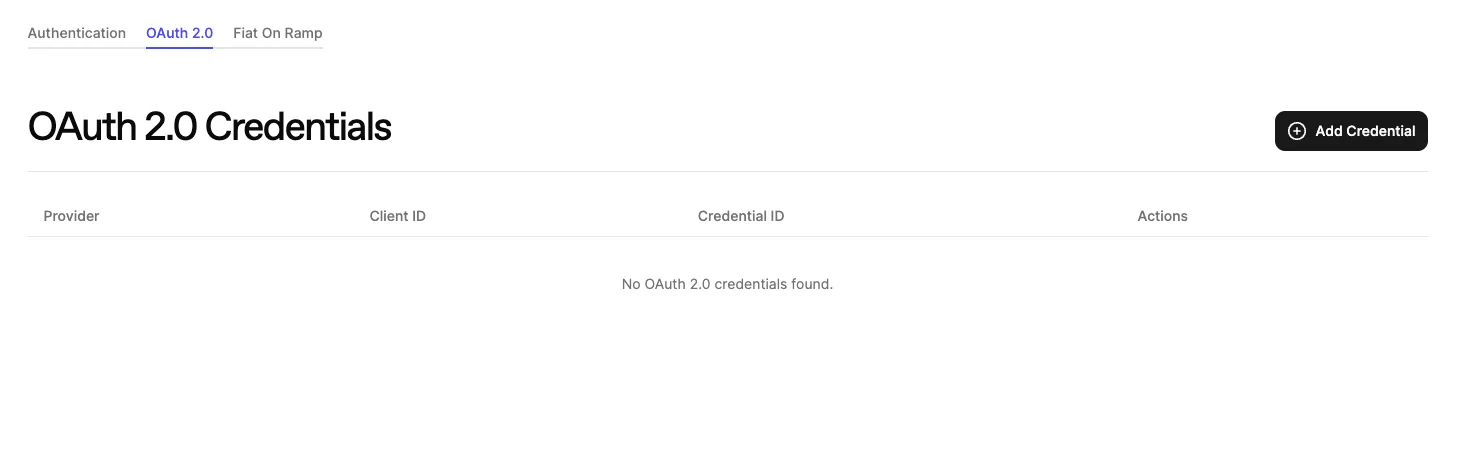
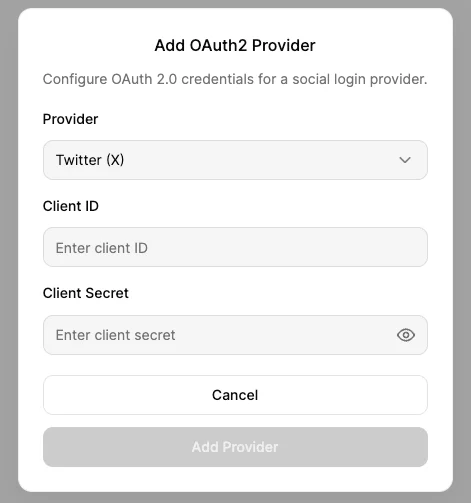
TurnkeyContext.init’s config as shown above.
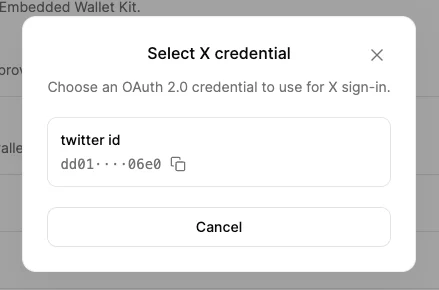
Discord
Requirements:- Client ID: set in Dashboard or in the
TurnkeyContext.init’s config. - In the Discord Developer Portal, set the redirect URI to
YOUR_APP_SCHEME://.
X (Twitter)
Requirements:- Client ID: set in Dashboard or in the
TurnkeyContext.init’s config. - In the Twitter Developer Portal, set the redirect URI to
YOUR_APP_SCHEME://.